 FASTIMG
 English
edit tool
Add objects to photos with AI
Free forever · Unlimited edits · No signup · No watermark
Describe what should appear and where, such as a vase of tulips on the coffee table or a hat on the dog, and FastImg places it in the photo with matching light and perspective. The rest of the image stays unchanged.
Before and after: tulips added to a living room
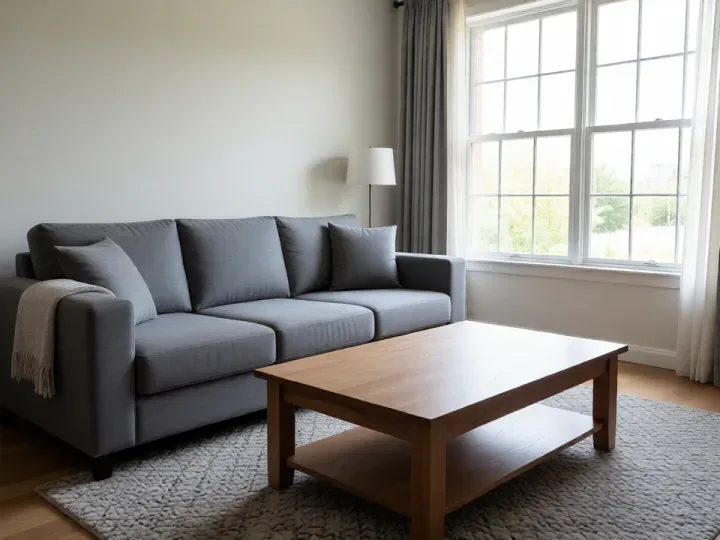
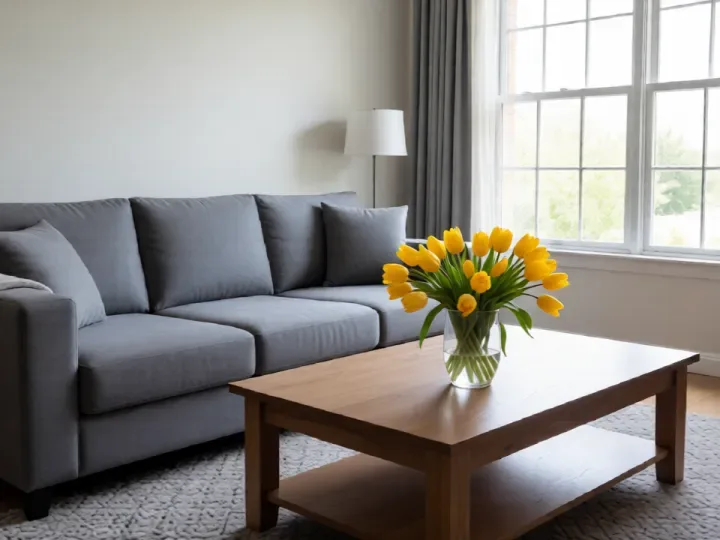
Both images come from FastImg. The room was generated from text, then edited with the prompt above.
How to add objects to photos with AI
- Upload the photo you want to add something to
- Describe the object and its position, for example a vase of yellow tulips on the coffee table
- Generate the edit and check placement with the before and after slider
- Adjust with a follow-up prompt, such as make the vase smaller, if needed
- Download the finished photo as a PNG
What people add
- Flowers, books, or decor to interior and real-estate photos
- A prop next to a product to show scale or context
- Accessories such as glasses, hats, or jewelry in portraits
- Furniture or plants in an empty room
- A pet, a balloon, or a sign for a fun social post
Input and output
- Say where the object goes; a position such as on the table or in the left corner gives a more predictable result
- Add one object per edit and chain edits for more
- Input: one photo at a time as JPEG, PNG, WebP, or GIF; an optional second image can be attached as a style reference
- Very large photos are scaled down in your browser before the edit is sent
- Output: every version downloads as a PNG, straight from the timeline
- The edit follows your prompt, so name the exact thing to change and what should stay the same
Frequently asked questions
Is FastImg free forever?
Yes. FastImg image editing is free forever, with unlimited edits and no signup required.
Will my edited image have a watermark?
No. FastImg does not add a watermark to edited images.
Will the added object match the lighting of the photo?
FastImg blends the object into the existing scene, including shadows and light direction. If it looks off, rephrase the prompt or step back and try again.
Can I move or resize the object after adding it?
Yes, with a follow-up prompt such as move the vase to the left or make it smaller. Each prompt builds on the previous result.
Can I add something from a second photo?
You can attach a second image as a reference alongside your prompt. Describe what to take from it and where it should go.